SVG vs EPS vs PDF: Which File Should Your Printer Get?
SVG vs EPS vs PDF for a logo: what really differs, which file to send for paper, apparel, engraving or signs, and what to do if EPS is required.
By Gaël Pons
Published
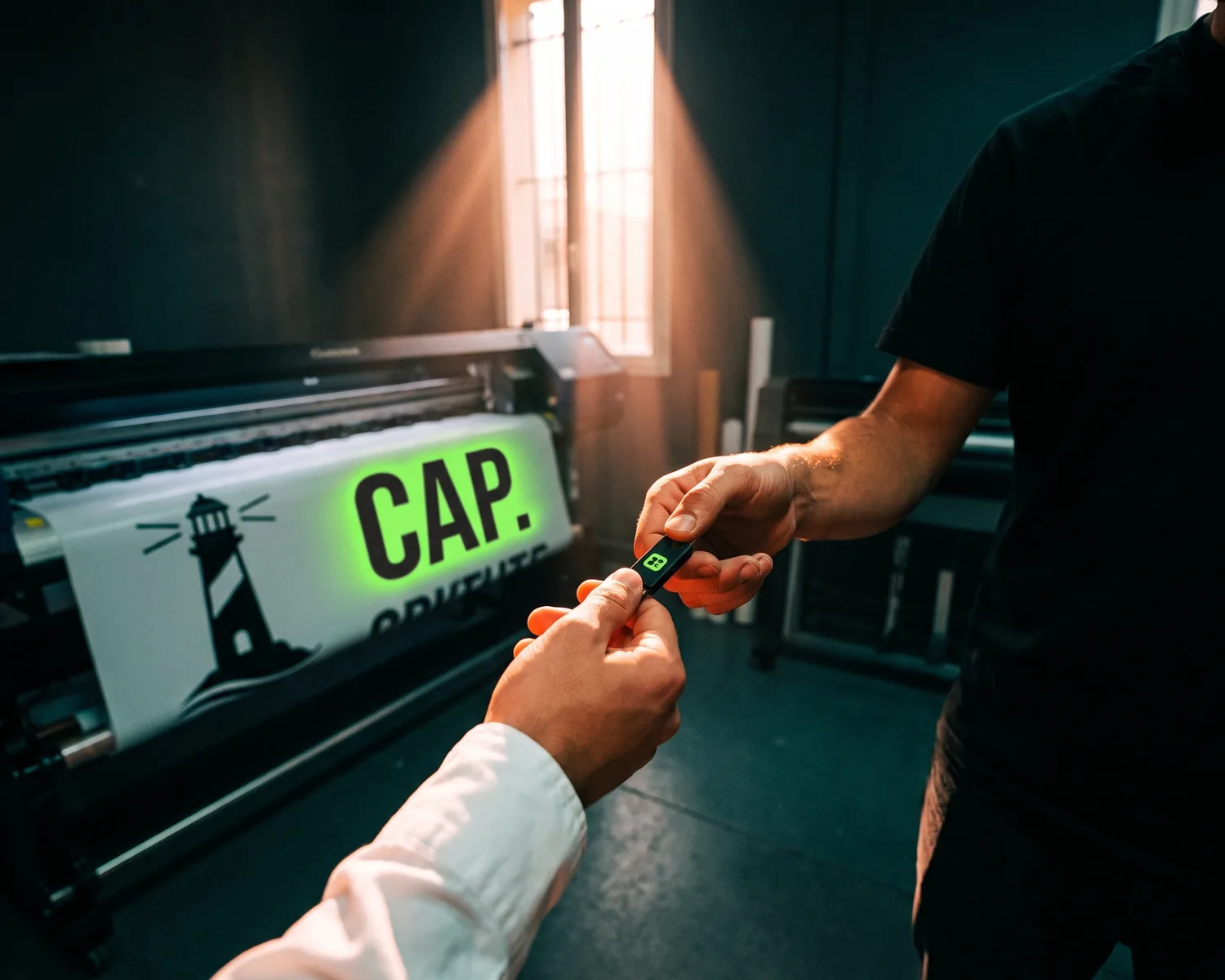
SVG, EPS and PDF can all hold the same vector logo; the difference is who reads them. A vector PDF is the safest file for a print shop, SVG suits apparel, cutting machines and the web, and EPS is a legacy format you only send when someone insists on it.
What is the difference between SVG, EPS and PDF?
The difference between SVG, EPS and PDF is mostly age and audience, not quality. Each of them can carry a vector file: your logo saved as outlines and solid fills, not as rows of little colored squares, so it stays crisp from a sticker to a banner.
- SVG (Scalable Vector Graphics) is an open web standard from the W3C. Every browser displays it, and embroidery, vinyl and cutting software imports it easily. More in what an SVG file is.
- EPS (Encapsulated PostScript) comes from Adobe’s PostScript printing language. It is older and harder to preview, yet a handful of print shops keep asking for it out of habit. More in what an EPS file is.
- PDF is the standard way to hand off print jobs. It locks the layout and opens on any computer. But a PDF is only vector if the logo inside it was vector: a JPG dropped into a PDF is still pixels.
SVG vs EPS: which one is better for a logo?
For a logo, SVG is the better choice over EPS in almost every case today: it is lighter, opens in a browser for a quick check, and is accepted by most apparel printers, embroiderers and sign makers. EPS only wins when a shop’s workflow is built around it and they will not take anything else. Converting one into the other keeps the same shapes, so nothing is lost by starting from SVG.
SVG vs PDF: which should you send to a printer?
Between SVG and PDF, send a vector PDF to a printer that handles paper (flyers, business cards, posters) and an SVG to anyone who cuts, embroiders or engraves. Paper print shops build their checks around PDF; cutting and embroidery software wants raw shapes it can follow. If you are unsure, attach both: they describe the same logo.
Which format for which job?
The right format depends on what is being made: paper likes PDF, fabric and cutting like SVG, engraving wants a one-color version.
| Job | File to send | Watch out for |
|---|---|---|
| Flyers, business cards, posters | Vector PDF | Text converted to outlines, CMYK colors |
| T-shirts, jerseys (vinyl, screen print) | SVG or vector PDF | Few colors, solid fills |
| Embroidery, patches | SVG + one-color version | No hairlines, no gradients |
| Engraving, stamps, laser cutting | One-color SVG | Pure black, no gray |
| Signs, banners, decals | SVG or vector PDF | A light version for dark backgrounds |
| Website, social media | SVG or transparent PNG | No white box around the logo |
What if the printer insists on EPS?
If a printer insists on EPS, first ask whether a vector PDF works for them: many shops that list “EPS” in their specs accept PDF without a second thought. If they truly need EPS, Inkscape (free) opens your SVG and saves it as EPS through File, Save As. Open the result once to check it before sending. Many shops will also do this conversion themselves from a clean SVG.
What if they ask for an AI file?
An AI file is Adobe Illustrator’s working format, and a printer who asks for one usually just means “an editable vector file”. A vector PDF or an SVG does the same job and Illustrator opens both. If your old designer still has the AI file, it is worth asking for: see what an AI file is.
Is a 300 DPI JPG good enough instead?
A 300 DPI JPG is good enough for a photo printed at its intended size, not for a logo that will be embroidered, cut, engraved or blown up on a banner. DPI only says how densely the pixels sit on paper; it never turns pixels into shapes. Machines that follow outlines need a real vector, which is why “high-res” and “vector” are not the same request.
From one JPG to a full set of print files
Stuck with nothing but a JPG or PNG of your logo? Depixelise turns it into shapes in about ten seconds and shows you the result full size on screen. By email, you get four files that cover the table above: the SVG for your printer, embroiderer or vinyl shop; a 2000 px PNG with no background for documents and your website; a one-color version for engraving and stamps; and a light version for dark garments and shop windows. The whole set is free: Depixelise is 100% free, with no watermark on the files and no account to create. Need a PDF or EPS too? Open the SVG in Inkscape and save it in that format. Step-by-step advice on checking the result lives in our guide to vectorize a logo.
FAQ
Can I convert an EPS file to SVG?
Yes, Inkscape (free) and Illustrator both open an EPS and save it as SVG, keeping the same shapes. If the EPS only contains a pasted pixel image, the SVG will contain that same pixel image, so the conversion will not make it sharper.
Is a PDF always a vector file?
No, a PDF is simply a wrapper, and what sits inside may be vector shapes, pixel images, or a mix of both. Zoom in very close on the logo; if the edges stay smooth, it is vector, and if they turn into little squares, it is pixels.
What is PDF/X, and do I need it?
PDF/X is an ISO standard version of PDF designed for printing, with colors and fonts locked in. Design software offers it as an export option; for a simple logo, a regular vector PDF is usually accepted.
Why won’t my printer take a Word or PowerPoint file?
Word and PowerPoint files change depending on the computer that opens them: fonts get swapped, margins shift, images get recompressed. A printer wants a fixed file like a PDF, or clean shapes like an SVG.
Does it matter which file I keep for myself?
Keep the SVG as your master copy: it is the easiest to open, to check, and to convert into PDF or EPS later. Store it next to the PNG so you always have something ready for the web, too.