Vectorize a Logo for Free: The 10-Second Method
The vector logo your printer is asking for, made online with no account: the steps, the files you should get, and what to check before sending.
By Gaël Pons
Published
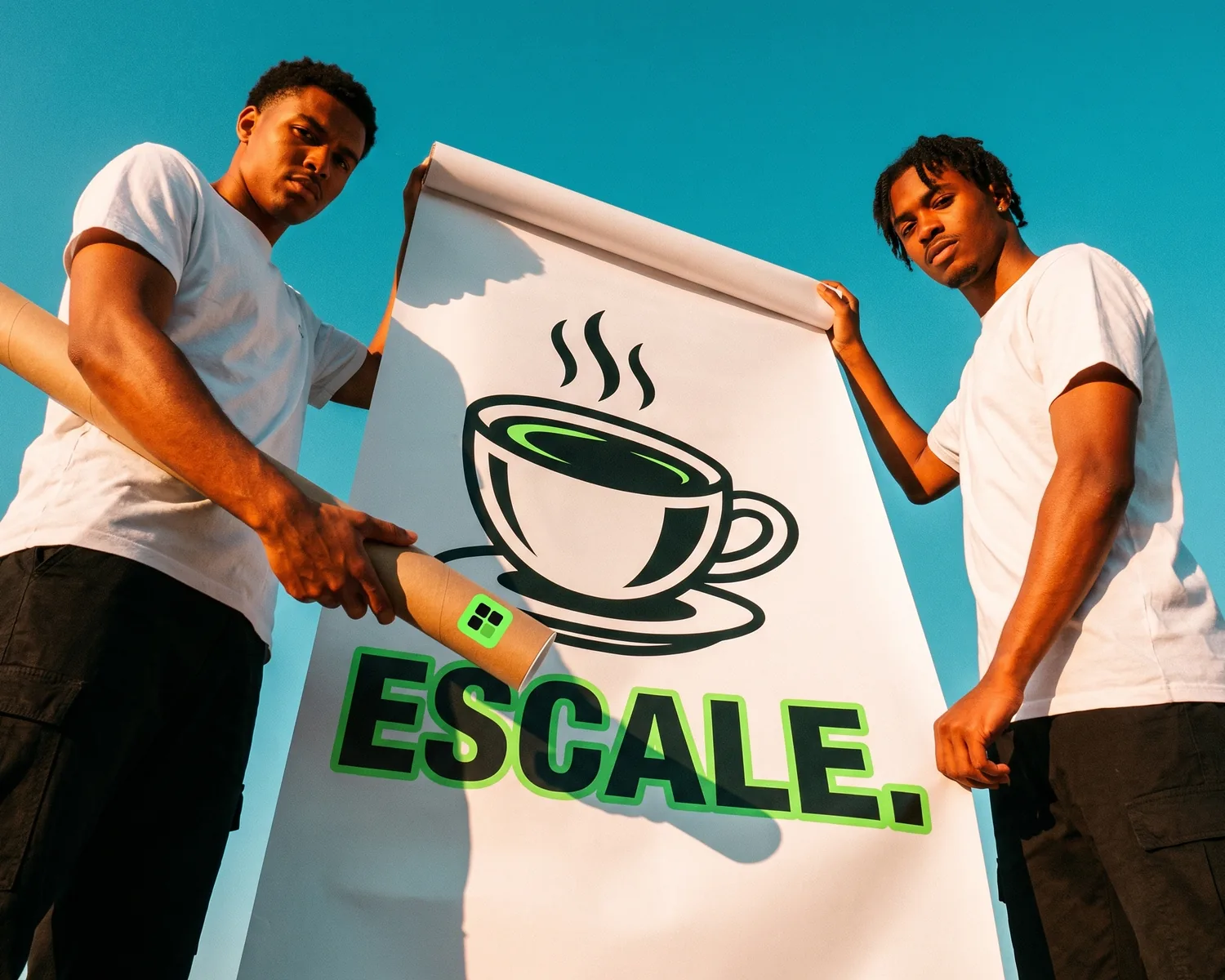
To vectorize a logo is to swap its grid of pixels for drawn outlines, so it looks just as clean on a banner as on a badge. That’s the file your printer wants. With a free online converter such as Depixelise, it needs no software and no account, and the conversion takes about ten seconds.
One step is left after that, and nobody should skip it: checking the result before it goes to the print shop.
What does “vectorize a logo” actually mean?
Vectorizing a logo means turning a pixel image (a JPG, a PNG, a screenshot) into a vector file, meaning one built from outlines filled with color, with no pixel grid underneath. Every letter and every symbol becomes an outline the computer redraws at whatever size the job calls for, from a one-inch rubber stamp to a ten-foot banner.
The output is usually an SVG. The same idea applies to any picture, logo or not, and the full walkthrough lives in our guide to vectorizing an image.
Why does your printer ask for a vectorized logo?
Your printer asks for a vectorized logo because their machines work with outlines, not pixels. An embroidery machine stitches along shapes, a vinyl cutter and a laser engraver follow paths, and screen printing splits the design into flat areas of color. A JPG gives them none of that, however good it looks on screen, and it turns blurry the moment it’s blown up for a banner or the back of a jersey.
So “we need your logo as a vector” isn’t a complaint about you. It’s a production requirement, and most of the time you can meet it without hiring a designer.
How do you vectorize a logo for free online?
To vectorize a logo for free online, dig up your best copy of it, upload that copy to a converter, and inspect the output up close before anything leaves your hands.
- Track down the largest version of the logo. The file your old agency sent, the header of a PDF quote, your own website: a large, crisp starting image gives you shapes that stay true to the original. A screenshot is the last resort.
- Drop it into an online converter. A good one removes the background, redraws the shapes and leaves no watermark. What separates the free tools is covered in how to pick an online vectorizer.
- Check before you send. Four things are enough, explained below: edges, small text, background and colors.
Vectorize your logo the night before the order
On Depixelise, your logo is converted in about ten seconds, on a server, with nothing to install. It’s built for the evening your printer chases you, with the team jerseys going into production the next morning. Upload your logo (PNG, JPG, WebP or SVG, 10 MB max) with no sign-up, and the result shows up full size on screen, ready to zoom. The files land in your inbox, 100% free and with no watermark.
Which files should you get after vectorizing a logo?
After vectorizing a logo, you want at least an SVG for the print shop and a transparent PNG for screens; two extra versions save you a lot of back-and-forth later. Here are the four files in the Depixelise pack and what each one is for:
| File | What it’s for |
|---|---|
| SVG | The one to send to your printer, embroiderer or engraver |
| 2000 px PNG, transparent background | Your website, documents and social media |
| Single-color version | One-color jobs: embroidery, engraving, rubber stamps |
| Negative version | Your logo on dark fabric or a dark background |
If your shop insists on an EPS or a vector PDF, don’t panic: both formats can carry exactly those outlines; what a vector file is and which format to send sorts that out. And if someone else vectorizes the logo for you, use this table as your checklist.
How do you check a vectorized logo before sending it?
You check a vectorized logo by opening the SVG in your web browser and zooming in hard on four things: edges, small text, background and colors. It’s the same check your printer will run when the file arrives, so you might as well run it first.
- Edges stay smooth at high zoom. Stair-step edges give away a fake SVG, which is just a pixel image packed inside a vector container: here’s how to spot a fake SVG.
- Small text breaks first: a tagline, a “since 1987”, a town name under the symbol. Compare it letter by letter with the original.
- The background shows as a checkerboard, meaning it’s transparent, not as a white box that would stand out on a dark t-shirt.
- Colors are clean, with no fuzzy halo around the letters, and match the ones you normally use.
Can you vectorize a logo in Illustrator or Canva?
You can vectorize a logo in Adobe Illustrator with Window > Image Trace, a preset such as Black and White Logo, then the Expand button, which turns the preview into editable shapes. Illustrator is a paid subscription, and getting the settings right (threshold, number of colors, smoothing) takes some practice.
Canva doesn’t vectorize an image you upload: a JPG or PNG logo stays pixels, even in a PDF export. You need an add-on app, and downloading an SVG requires a paid plan. Desktop programs, Inkscape included, are weighed up in this roundup of vectorization software; for a logo headed to the print shop, an online converter is quicker.
When should you have a logo redrawn instead?
Having a designer redraw your logo makes sense when automatic vectorizing can’t recover the original shapes: subtle gradients, 3D or texture effects, or a logo that only survives as a worn-out scan or a photocopy. The designer rebuilds it by hand, usually with the Pen tool, and bills for the time, which counts in days rather than seconds.
Always try the automatic route first. It costs nothing, and the preview tells you right away whether your logo needs a human.
How much does it cost to vectorize a logo?
Vectorizing a logo can cost nothing at all: some online converters charge for the download or push a subscription, others hand over the file for free, with no account and no watermark. A hand redraw by a designer is a separate, paid service, priced on how complex the logo is.
FAQ
Do I need to tell my printer the logo was vectorized automatically?
No, there’s no need: the print shop judges the file it receives, not how it was made. If you still have the old file, send it along so they can compare colors and proportions.
What if a letter looks distorted after vectorizing?
A distorted letter almost always comes from a starting image that was too small or too compressed, so start again from a bigger version of the logo. If none exists, a quick fix in Inkscape or by a designer corrects that one letter without redoing everything.
Can you vectorize a logo from a photo of a shirt or a sign?
Yes, a photographed logo can be vectorized if the shot is taken straight on, in focus and without glare. Fabric folds and perspective end up in the shapes, so crop tightly and check the proportions before you send it.
Can you vectorize a logo saved from Facebook or a website?
Yes, but those images are often tiny. Depixelise upscales them automatically before rebuilding their shapes, which can change a small detail, so compare with the original. Look for a larger version first, in a PDF or an old email.
Should I use the SVG on my website too?
For your website, the transparent PNG is usually the safer pick: it displays everywhere, including tools that reject SVG, such as some email signatures. Keep the SVG for print shops and embroiderers.